
Taking a course in basic web design would be useful in understanding accessibility; both from the aspect of structuring your documents and giving you more ways to control Blackboard.
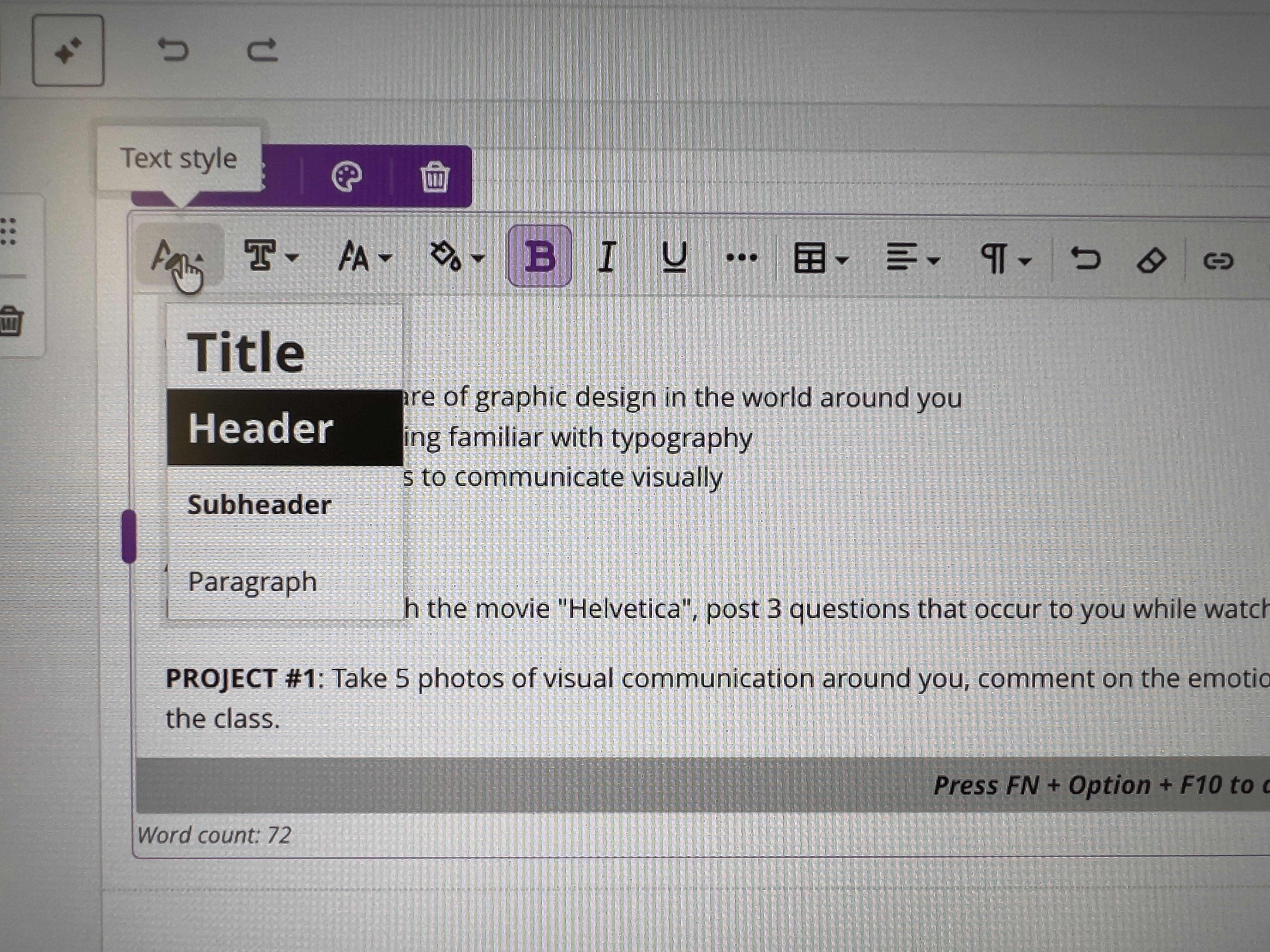
Use Text Style > Title, Header, Subheader to add hierarchy to your text, much like you would add levels to an outline for a research paper, so students understand the structure of your document. Try to be consistent from page to page in how you add that structure.
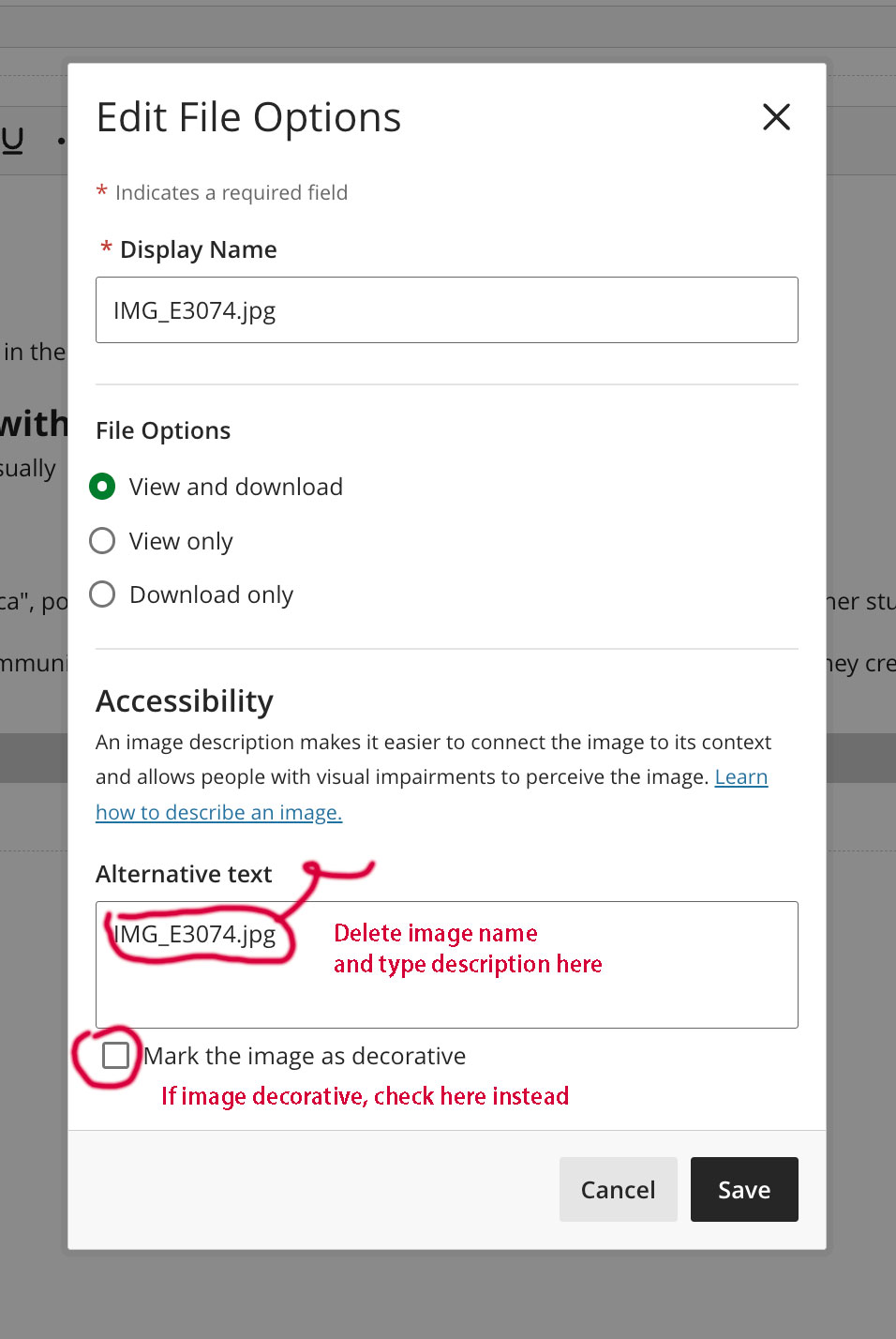
Add alt tags to any image you place; if it's strictly for decoration, write "decoration" for the alt tag.
The hardest part of creating a good accessible website is being consistent throughout.
File > File Info allows you to add:
(Though you will need to check to make sure they show up in Acrobat when you export them)
USE PARAGRAPH STYLES!!!
Window > Interactive > Bookmarks
You can even add subsets
Bookmarks can be added to whole pages or anchored to specific items.
Use paragraph styles to keep your form elements consistent.
(I find it easier to create an entirely different layer for setting up form elements. Rather than the form elements being the actual elements, I tend to overlay them on the printable elements.)
Also, might set view default to "Fit Page" and "Single Page Continuous"
You can add bookmarks in Acrobat, but no spaces are allowed in names for some reason so better to add in InDesign or Word.
File > Properties to add document name
Use Home > Style Panel to create hierarchical order by using styles Heading 1, Heading 2, Heading 3, Heading 4 and Normal
Create tab order for forms by clicking the form, using the shortcut menu and selecting Tab Order, and moving the appropriate selection up or down in the order. (Microsoft: Set tab order using the tab order dialog box)